

How to Download Apple Music Playlist to MP3: A Complete Guide
Apple Music has become one of the most popular music streaming services in the world, offering millions of songs, curated playlists, and exclusive releases. Whether you enjoy pop, hip-hop, classical, or indie music, Apple Music playlists make it easy to discover and organize your favorite tracks. However, many users still wonder: how to download Apple Music playlist to MP3 for offline listening and greater flexibility.
In this guide, we’ll explain why Apple Music playlists can’t be directly saved as MP3 files, explore the benefits of converting them, and show you the easiest and most reliable solution—ViWizard Apple Music Converter.
Table of Contents
Why Can’t You Download Apple Music Playlists to MP3 Directly?
Although Apple Music allows subscribers to download playlists for offline listening, those downloads come with strict limitations:
- DRM protection: Apple Music songs are protected by FairPlay DRM.
- Playback restrictions: Downloaded songs can only be played within the Apple Music app.
- Subscription dependency: Once your subscription ends, you lose access to all downloaded content.
- No MP3 support: Apple Music does not allow exporting playlists or songs as MP3 files.
As a result, you can’t freely transfer Apple Music playlists to MP3 players, USB drives, car stereos, or other devices that don’t support Apple Music.
Why Download Apple Music Playlists to MP3?
Converting Apple Music playlists to MP3 offers several practical advantages:
- Offline playback anywhere: MP3 files work on almost all devices, including Windows, Mac, Android, smart TVs, car systems, and portable MP3 players.
- Permanent ownership: Once converted, you can keep your music forever, even if you cancel your Apple Music subscription.
- Flexible music management: MP3 files are easy to organize, edit, back up, and share across devices.
- No app limitations: Enjoy your favorite Apple Music playlists without relying on the Apple Music app or an internet connection.
To achieve this, you need a professional Apple Music to MP3 converter—and that’s where ViWizard Apple Music Converter comes in.
Your Gateway to Freedom: ViWizard Apple Music Converter
Manually recording audio is tedious and results in poor quality. The professional and efficient way is to use a dedicated DRM removal tool. ViWizard Apple Music Converter is specifically designed for this purpose. It seamlessly converts any Apple Music song, album, or playlist—along with audiobooks from Audible—into DRM-free MP3, AIFF, FLAC, WAV, and more, while preserving 100% of the original quality and ID3 metadata (like artist, album, and cover art).

Why Choose ViWizard?
- Lossless Quality: Experience crystal-clear audio with no loss in fidelity.
- Blazing Speed: Convert songs up to 30X faster than real-time playback.
- Batch Conversion: Download entire playlists or albums in just a few clicks.
- Permanent Access: Keep your music forever, regardless of subscription status.
- Superb Organization: Automatically keeps your converted files perfectly organized with all original details.
Step-by-Step: How to Download Your Playlist to MP3
Ready to take control? Follow these simple steps with ViWizard.
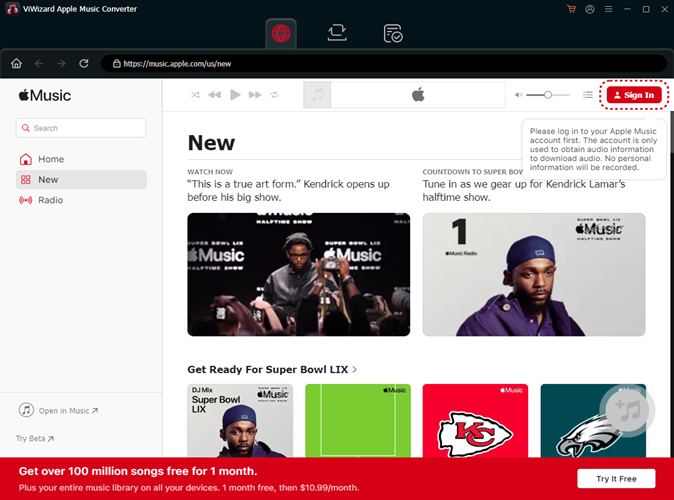
Step 1: Download and Install
Visit the official ViWizard website and download the Apple Music Converter for your Mac or Windows PC. Follow the straightforward installation instructions.
Step 2: Add Your Apple Music Playlist
ViWizard comes with a built-in Apple Music web player. Log in using your Apple Music account to access your playlists, albums, and library. Browse your library and open the playlist you want to download. Click the “Add” button to load all songs from the playlist into ViWizard.
Step 3: Customize Your Output Settings (Optional but Recommended)
This is where you tailor the process. Click the menu or settings icon in ViWizard. Here, you can:
- Set Output Format: Choose MP3 as your target format.
- Adjust Quality: Select the bit rate (e.g., 320 kbps for excellent quality).
- Organize Files: Choose how files are named and sorted (e.g., by Artist/Album).
Step 4: Convert and Download Your Playlist
Once your settings are perfect, click the “Convert” button. ViWizard will now work its magic, rapidly decoding and converting each track while preserving every beat and note in perfect quality.
Step 5: Find and Enjoy Your MP3s Anywhere!
After conversion, click the “History” or “Converted” folder icon within ViWizard. Your fully downloaded MP3 playlist will be there, ready to use. You can now copy these files to any device—transfer them to your Kindle, Sony MP3 player, or smartphone, burn a CD, or store them on a cloud service for universal access.
Embrace True Music Ownership
Don’t let your favorite playlists be held captive by an app. With ViWizard Apple Music Converter, you break the digital locks and gain true ownership and flexibility over the music you love. It’s more than a converter; it’s your ticket to seamless, uninterrupted, and universal listening.
Turn your Apple Music playlists into a permanent, portable music library today. Download ViWizard and set your music free.